
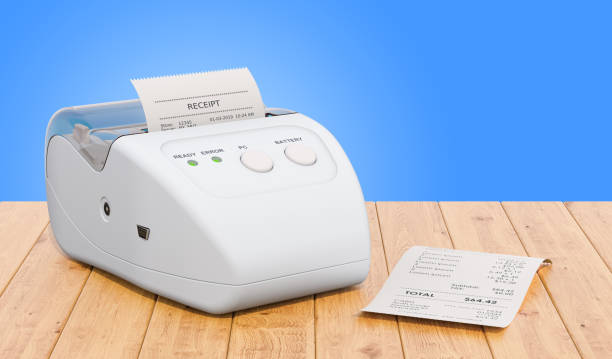
A Step-by-Step Guide to Changing the Paper Roll in Your POS Printer
Understanding the Basics of POS Printers
Point of Sale (POS) systems are essential for any modern retail or hospitality business, and the POS printer plays a crucial role in ensuring a smooth checkout experience. Whether you’re printing receipts, order tickets, or transaction summaries, the paper roll inside your printer is what keeps your business running seamlessly. However, even the most advanced models require some maintenance, and knowing how to change the paper roll efficiently is a skill every staff member should master. In this comprehensive guide, we’ll walk you through the process step-by-step, explore common mistakes to avoid, and offer tips on choosing from a selection of reliable POS printers to optimize your setup.
When and Why You Need to Replace the Paper Roll
Replacing the paper roll in your POS printer isn’t just about running out of paper. You might also need to switch rolls if the paper is jammed, wrinkled, or if you’re switching to a different paper type. Most POS printers will alert you when paper is running low, but ignoring these signs can lead to interrupted transactions and a frustrating customer experience. Learning how to recognize these signs and acting promptly ensures your business stays efficient and professional.
Step 1: Identify Your POS Printer Model
Before you attempt to replace the paper roll, it’s important to know which model you’re working with. POS printers can be thermal, impact, or inkjet, though thermal printers are the most common due to their speed and efficiency. Make sure your replacement roll matches the printer’s specifications. Using paper that’s too thick, wide, or long can cause malfunctions or damage your device. This is why it’s wise to choose from a selection of reliable POS printers that are compatible with readily available paper rolls and are easy to maintain.
Step 2: Power Off the Printer
Safety first. Always turn off the POS printer before opening it to replace the roll. Not only does this protect the internal mechanisms of the device, but it also helps you avoid accidental burns, particularly with thermal printers that may have hot print heads. Waiting a few seconds after turning off the printer allows moving parts to stop and any residual heat to dissipate.
Step 3: Open the Printer Cover
Most POS printers have a clearly marked latch or button to open the paper compartment. Lift the cover gently to avoid damaging hinges or internal parts. Take note of the paper feed direction; many printers have diagrams or stickers inside the compartment to guide you. If your device is part of a selection of reliable POS printers, this design element will make the task more intuitive and user-friendly.
Step 4: Remove the Used or Jammed Roll
Carefully lift out the old paper roll, even if it’s not completely empty. Check the paper feed path for dust, torn pieces of paper, or debris that could affect performance. Gently blow out or brush away any lint or residue, especially if your POS environment is exposed to grease or moisture. This step is essential for maintaining the quality and longevity of your printer, and another reason to invest in a selection of reliable POS printers that are engineered for heavy use.
Step 5: Load the New Roll Correctly
Place the new roll into the paper compartment with the paper feeding from the bottom or top, depending on your model. The end of the paper should come up and over the roll and extend slightly out of the compartment. This positioning ensures the thermal head or print ribbon makes proper contact with the paper for crisp, legible prints. Misalignment can result in faded or missing text, and repeated errors could damage your printer over time.
Step 6: Close the Printer Cover Securely
Once the roll is in place, close the cover until it clicks. Give a slight tug on the exposed paper to make sure it’s feeding freely. If the paper sticks or feels tight, reopen the compartment and realign it. This is a common mistake that can lead to paper jams and wasted supplies. Quality models from a selection of reliable POS printers often have locking mechanisms and feed sensors that make this process virtually foolproof.
Step 7: Power On and Test Print
Turn the printer back on and run a test print to confirm proper installation. Many POS systems offer a built-in test function or allow you to print a receipt preview. This helps verify that the paper is feeding evenly, the text is printing correctly, and the setup is ready for use. If anything looks off, recheck your installation and try again.
Preventative Maintenance Tips
Changing the paper roll is also a good time to do a quick check-up on your POS printer. Wipe down the print head with a lint-free cloth and use manufacturer-approved cleaning tools if needed. Avoid using water or alcohol unless specified. Preventative care ensures your device stays in top condition, and again, opting for a selection of reliable POS printers can reduce the need for frequent repairs and replacements.
Training Staff to Change Rolls Efficiently
Your staff should be trained to handle roll changes quickly, especially during busy hours. A short hands-on tutorial during onboarding can make a huge difference. Post visual guides near each POS station for easy reference. The easier it is to change the roll, the less likely you are to experience downtime, making it beneficial to choose from a selection of reliable POS printers that are built with usability in mind.
FAQs
How do I know which paper size my POS printer uses?
Check the printer’s manual or look for a label inside the paper compartment. If you’re unsure, measure the width and diameter of the old roll.
What’s the difference between thermal and regular POS paper?
Thermal paper is coated with a heat-sensitive material and doesn’t require ink, whereas regular paper used in impact printers needs ink ribbons. Always use the correct type for your printer.
Can I use any brand of paper in my POS printer?
It’s best to use the recommended paper type and size from your printer’s manufacturer. Using generic or incompatible rolls can affect performance or void warranties.
Why does my printer jam even with a new roll?
Paper jams can result from improper loading, debris in the feed path, or using the wrong paper size. Double-check installation and keep the printer clean.
How often should I replace the paper roll?
This depends on usage. High-traffic businesses may go through multiple rolls a day, while others may replace it weekly. Monitor usage and keep spare rolls on hand.
Conclusion
Mastering the simple task of changing the paper roll in your POS printer can save time, reduce errors, and enhance customer satisfaction. While the process may seem straightforward, overlooking small steps can lead to unnecessary complications. Consistency in maintenance and staff training ensures optimal performance. To get the best results, invest in a selection of reliable POS printers that are designed with user-friendly features and durable components. These devices not only streamline operations but also reduce the long-term costs of repairs and downtime. Whether you’re running a busy café or a retail store, choosing the right equipment is key to operational success. Brands like HPRT continue to innovate in this space, offering high-performance models suited to various business needs.
Author Bio
Written by Emily Chen, a technology writer with expertise in retail hardware solutions and extensive experience reviewing HPRT products. To explore advanced POS systems and learn more about optimizing your business, visit https://www.hprt.com/.
